Every item in your inventory is published to iPhone search, the one you get by swiping down on the Home Screen. Type a few letters of something you own and it appears there next to your apps and contacts, with no need to open Vorby first and search inside it.
Search for an item
- Swipe down on your Home Screen to open iPhone search.
- Type part of the item’s name, like passport or drill.
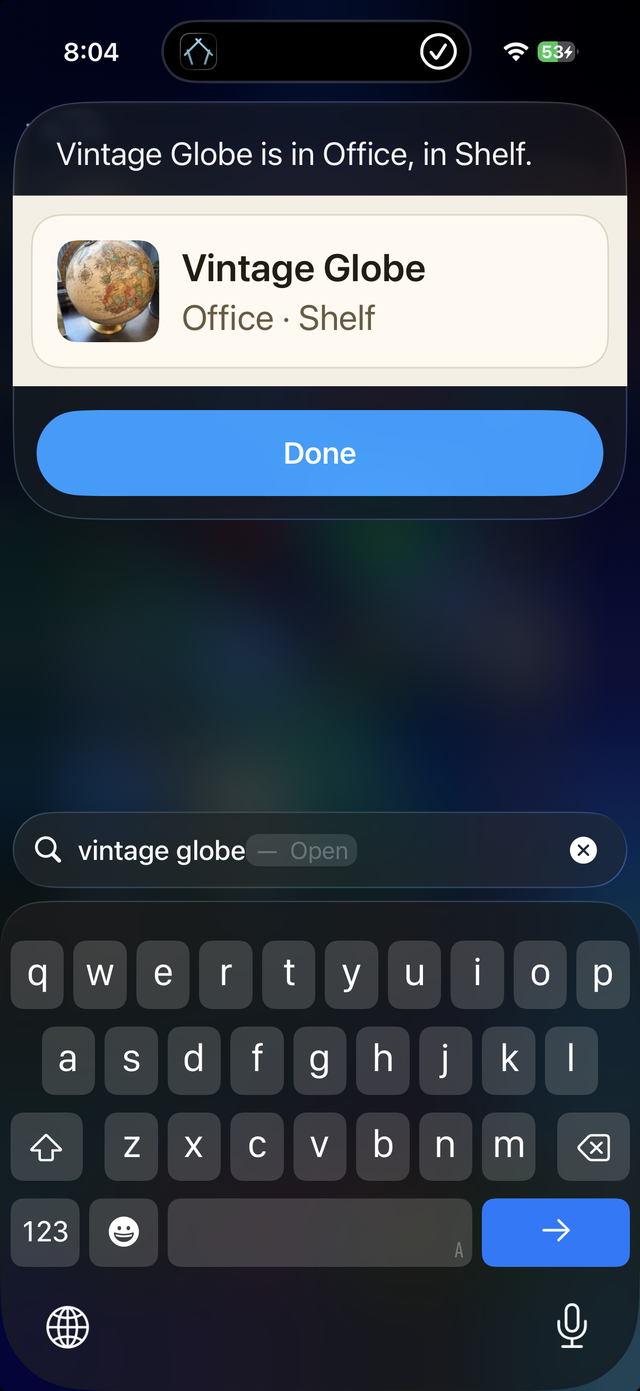
- Your Vorby items appear with their photo, and the room and spot underneath.
- Tap one and Vorby opens straight to that item.
Typing Vorby into the same search field also brings up the app’s shortcuts (Find Item, Room Contents, Scan Item, Add Item), so you can run one from there instead of speaking it. Running a lookup that way answers in place, on the same card Siri shows, without the app opening.
How it stays current
- New items are published as you add them, and edits follow within a sync.
- Photos appear on the search result once the app has loaded the picture at least once.
- Deleted items disappear from search too.
If items are not showing up
- Pull to refresh on the items list. A completed refresh rebuilds the whole search index from scratch.
- Check Settings › Apps › Vorby › Siri & Search on your iPhone, and make sure Show App in Search and Show Content in Search are on.
- Make sure you are signed in and looking at the right home. Only the home you currently have open is published to search.